How to Compress Images for the Web Without Uploading Them
2 min readZeroKit Team
Reduce JPEG, PNG, and WebP file sizes in your browser. Learn quality settings, resizing, format choices, Core Web Vitals, and no-upload workflows.
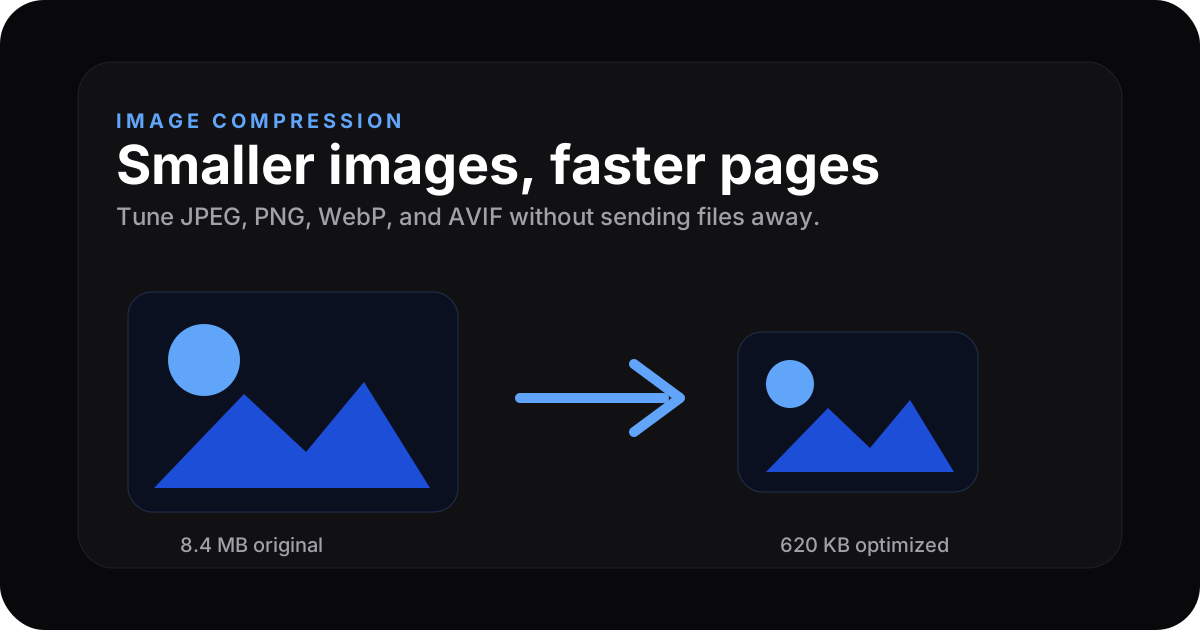
Large images are one of the biggest reasons pages feel slow on real networks. A single 8–15 MB photo can blow Largest Contentful Paint budgets and hurt conversions.
Why compression matters
- SEO & UX — Core Web Vitals reward fast LCP.
- Bandwidth — Smaller files cost less at the edge.
- Retention — Slow pages lose mobile users quickly.
The privacy problem with many compressors
Typical “upload → compress → download” flows send your pixels to a third-party server. For confidential UI mocks, product photos, or medical screenshots, that custodianship may be unacceptable.
ZeroKit's image compressor runs codecs in the browser (WebAssembly / canvas pipeline) so files stay on your device.
Compress privately → Open ZeroKit Image Compressor
Formats at a glance
| Format | Best for | Notes |
|---|---|---|
| JPEG | Photos | Lossy; great compression |
| PNG | Sharp edges, transparency | Often larger |
| WebP | General web use | Great tradeoffs in modern browsers |
| AVIF | Maximum compression | Slightly fewer old browsers |
Rule of thumb: prefer WebP/AVIF for new web work when you control the pipeline.
Quick workflow
- Drop images into the tool (or pick files on mobile).
- Tune quality — high‑70s to mid‑80s is a common sweet spot for photos.
- Download — compare before/after sizes locally.
Comparison table
| Tool | Client-side? | Notes |
|---|---|---|
| ZeroKit | Yes | No mandatory upload |
| Many popular sites | Upload-based | Read their privacy policy |
Pro tips
- Resize first if the UI never shows full resolution — pair with image resizer.
- Convert to WebP for another bump — image converter.
- Strip sensitive EXIF when sharing publicly (tool options vary).
Image compression settings that usually work
| Use case | Starting setting |
|---|---|
| Blog images | WebP, 75–85 quality |
| Product photos | JPEG/WebP, 80–90 quality |
| Screenshots | PNG if text must stay sharp, otherwise WebP |
| Social previews | Resize to final dimensions first |
| Mobile upload forms | Compress and resize before uploading |
FAQ
Will compression look blurry?
At moderate quality most people won't notice. Push quality down only as far as your art direction allows.
Mobile?
Yes — use the file picker where drag-and-drop is not available.