Compress, Merge, and Split PDFs Online — Without Uploading Files
7 min readZeroKit Team
Learn the safest browser-based workflow to compress PDFs, merge PDF files, and split PDF pages online for free. No signup, no upload, and your files stay on your device.
If you search for compress PDF online, merge PDF files online, or split PDF online, most results ask you to upload documents before anything happens. That works for some files, but it is not ideal for contracts, invoices, resumes, bank statements, school forms, tax documents, or anything with personal information.
ZeroKit’s PDF tools are built for the common workflow people actually need: reduce file size, combine documents, extract pages, and download the result without creating an account or sending files to a server.
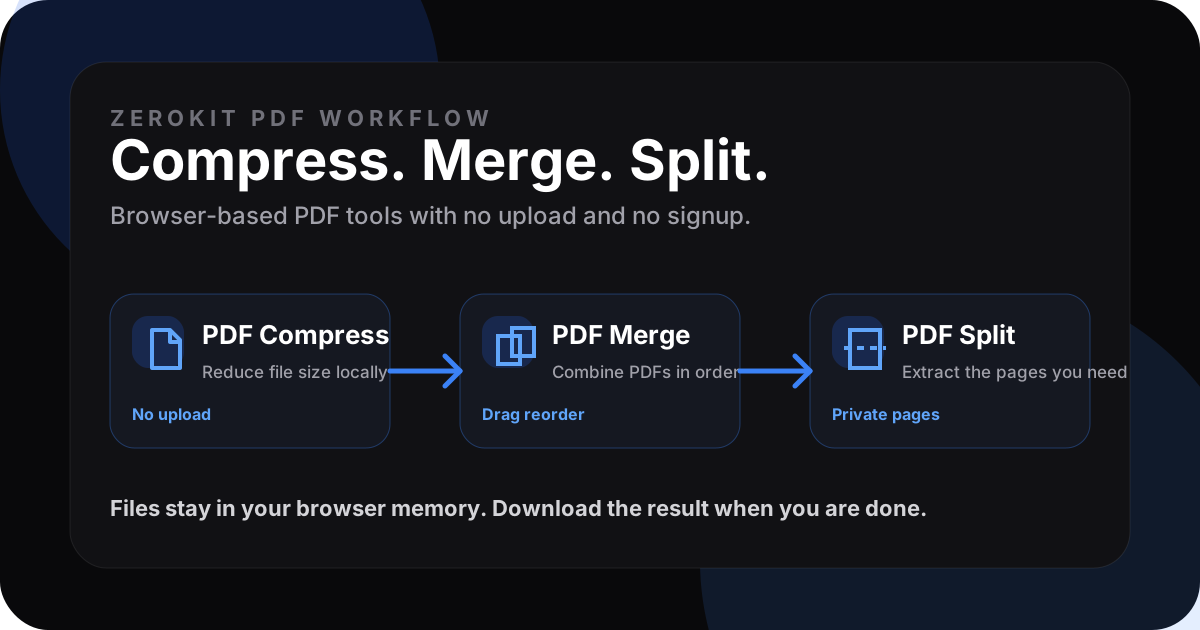
This guide explains the complete workflow first. Tool links are included later where they naturally help you try each step.
Quick answer: which PDF tool should you use?
| Goal | Best workflow | Search phrase people use | What happens locally |
|---|---|---|---|
| Make a PDF smaller for email, forms, or upload portals | Compress the PDF before sharing | compress PDF online, reduce PDF size, PDF compressor no upload | Images inside the PDF are recompressed in your browser. |
| Combine multiple PDFs into one document | Merge files after arranging order | merge PDF files online, combine PDFs, PDF merger free | Pages are copied into one new PDF in the order you choose. |
| Extract selected pages or remove extra pages | Split the final page range | split PDF online, extract PDF pages, save pages from PDF | You choose page ranges and download a new PDF with only those pages. |
Why “no upload” matters for PDF tools
PDFs often contain more sensitive data than image files or plain text. A single PDF can include a signature, address, invoice number, tax ID, client name, internal report, or scanned identity document.
When a PDF tool works locally:
- Your file is read by JavaScript in your browser.
- Processing happens in your device memory.
- The output is generated as a browser download.
- There is no waiting for an upload queue.
- There is no account, email capture, watermark, or cloud storage step.
This is why “PDF compressor no upload”, “merge PDF no upload”, and “split PDF without uploading” are strong search intents. People do not only want a tool; they want control over where the file goes.
Recommended workflow: compress, merge, then split only if needed
For most real-world document tasks, this order works best:
- Compress large PDFs first if they contain scanned pages or heavy images.
- Merge files second so the final document has the right order.
- Split or extract pages last if you only need a specific range from the final document.
Example:
You have a resume, portfolio, certificate, and cover letter. Compress the image-heavy portfolio first, merge all files into one packet, then split out only the pages requested by the application portal.
How to compress a PDF online without uploading
Use a browser-based PDF compressor when a PDF is too large for email, government portals, job applications, client uploads, or WhatsApp sharing.
Best for
- Scanned PDFs
- Image-heavy PDFs
- Receipts, forms, reports, and portfolios
- Files that fail an upload size limit
Steps
- Open PDF Compress.
- Add one or more PDF files.
- Preview the attached PDF if you want to confirm the file.
- Choose a quality level.
- Click Compress PDFs.
- Download the compressed result.
Try the compression step: Open ZeroKit PDF Compress
Tip
If the PDF is mostly text, compression may be small. If the PDF contains scanned pages or high-resolution images, the reduction can be much larger.
How to merge PDF files online without uploading
Use a browser-based PDF merger when you need one clean document from multiple files.
Best for
- Combining invoices
- Joining scanned pages
- Creating application packets
- Merging contracts and attachments
- Putting certificates into one PDF
Steps
- Open PDF Merge.
- Add two or more PDF files.
- Preview files if needed.
- Reorder using drag and drop or arrow buttons.
- Click Merge PDFs.
- Download the combined PDF.
Try the merge step: Open ZeroKit PDF Merge
Tip
Put cover letters, summaries, or index pages first. Put supporting documents after them. For forms, keep the exact order required by the receiving portal.
How to split or extract pages from a PDF
Use a browser-based PDF splitter when you only need certain pages from a larger PDF.
Best for
- Extracting one invoice from a monthly PDF
- Saving a certificate page from a long file
- Removing blank or duplicate scanned pages
- Sharing only selected pages from a report
Page range examples
| Need | Page range |
|---|---|
| First page only | 1 |
| Pages 2 to 5 | 2-5 |
| Pages 1, 3, and 7 | 1,3,7 |
| Multiple ranges | 1-3,8-10 |
Try the split step: Open ZeroKit PDF Split
Browser-based PDF tools vs upload-based PDF tools
| Feature | Browser-based PDF tools | Upload-based PDF tools |
|---|---|---|
| File leaves your device | No, for local tools | Yes |
| Account required | No | Sometimes |
| Works with sensitive documents | Better privacy model | Depends on vendor policy |
| Speed | Instant for many files | Depends on upload speed |
| Very large files | Limited by browser memory | Often better on servers |
| Offline after loading | Possible for many browser apps | Usually no |
The practical rule: use local tools for everyday private PDF work. Use server or desktop software only when files are extremely large, encrypted, corrupted, or require advanced OCR/editing.
Common mistakes to avoid
- Compressing after every edit: Repeated compression can reduce image quality. Compress once near the end.
- Merging in the wrong order: Check file order before clicking merge.
- Splitting before merging: If the final order matters, merge first, then split the final range.
- Uploading sensitive PDFs blindly: Review whether the tool says files are processed locally or uploaded.
- Ignoring page previews: A quick preview helps catch wrong files before merging or compressing.
SEO FAQ
What is the best free PDF compressor with no upload?
The best option is a browser-based PDF compressor that processes files locally. ZeroKit’s PDF compressor recompresses PDFs in your browser, requires no signup, and does not upload your file for the compression step.
Can I merge PDF files online without uploading them?
Yes. ZeroKit PDF Merge combines multiple PDFs locally in your browser. Add files, reorder them, merge, and download the result.
How do I split PDF pages online for free?
Open a browser-based PDF splitter, add the file into your browser, enter a page range like 1-3 or 2,4,6, and download the extracted PDF.
Are browser-based PDF tools safe?
They are safer for many everyday files because processing happens on your device instead of a remote server. You should still avoid using unknown tools for highly confidential documents unless you understand their privacy model.
Do I need to install software to compress, merge, or split PDFs?
No. ZeroKit runs in the browser. You do not need to install desktop software, create an account, or upload files for these local PDF workflows.
Final recommendation
If your goal is quick, private PDF work, start with the browser-based workflow:
- Compress the PDF to reduce file size.
- Merge PDFs to combine documents.
- Split the final PDF to extract the exact pages you need.
That covers the most common PDF tasks without signup, upload, or unnecessary cloud processing.